By default, Raspberry Pi OS (with the LXDE / PIXEL desktop) starts a panel at the top of the screen using lxpanel-pi.
If you are building a kiosk, digital signage, or a fullscreen application, this panel can be unnecessary or distracting.
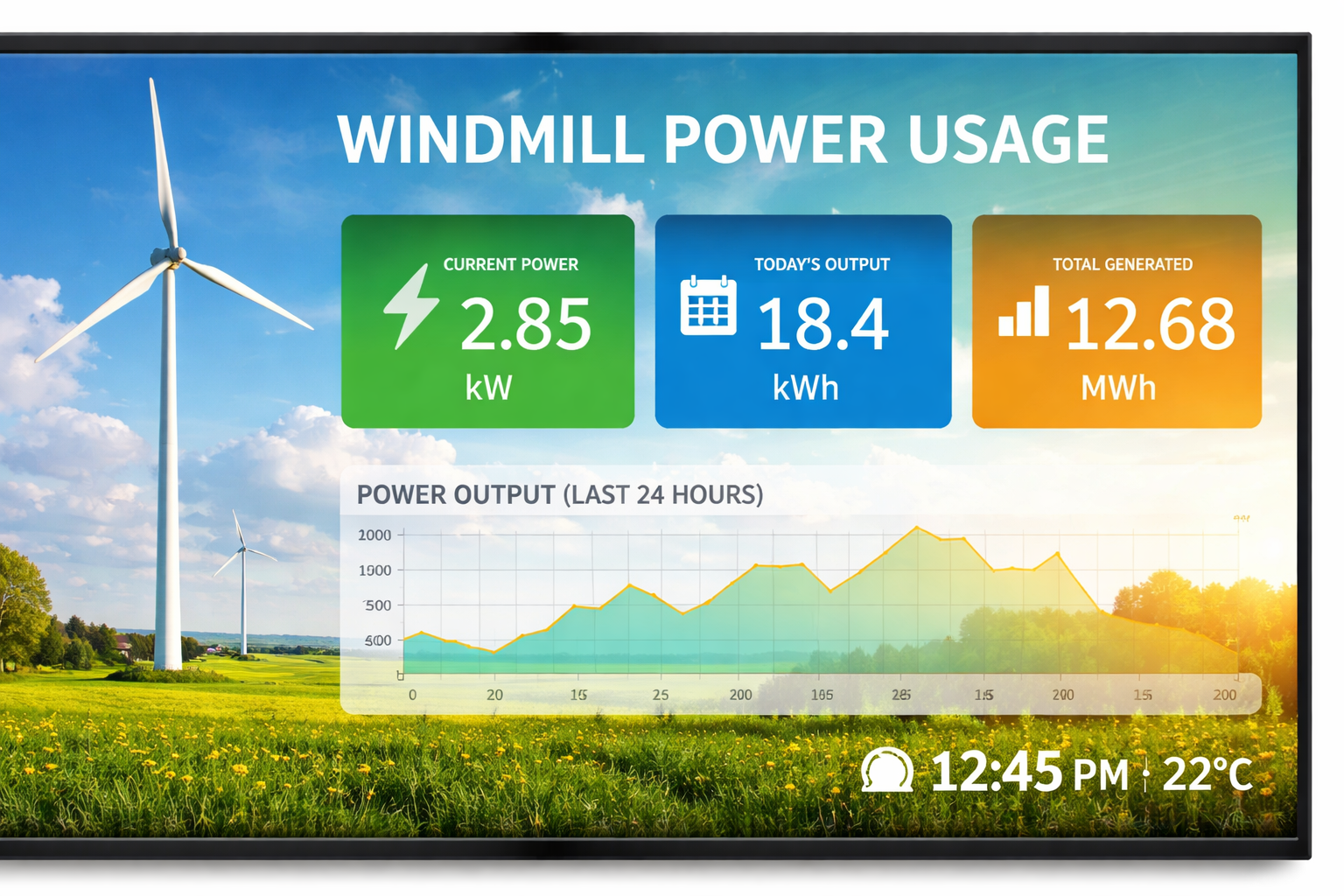
💡 A little personal note: I recently built a small, fun project on my Raspberry Pi that displays energy usage data from a windmill. To make it look cleaner and more “kiosk-like,” I needed to remove the desktop panel and give the viewer a full-screen experience. I ended up modifying the system just a bit to achieve this—and it works great!
In this article, I’ll show you a simple and reliable way to kill the panel automatically after login, using an autostart script with a short delay.
Why Use a Delay?
The panel (lxpanel-pi) is started after login by the desktop environment.
If you try to stop it too early, the process may not exist yet.
By adding a small delay (e.g. 5 seconds), we ensure:
-
The desktop has fully loaded
-
The panel process is running
-
The panel can be cleanly terminated
Step 1: Create a Script to Kill the Panel
First, create a directory to store your custom scripts:
mkdir -p ~/scripts
nano ~/scripts/kill_panel.sh
Paste the following content into the file:
#!/bin/bash
# Wait a few seconds for lxpanel-pi to start, then kill it
sleep 5
killall lxpanel-pi
Save and exit (CTRL+O, Enter, CTRL+X).
Step 2: Make the Script Executable
The script must be executable to run at login:
chmod +x ~/scripts/kill_panel.shStep 3: Add the Script to Autostart
LXDE uses .desktop files to start applications automatically when a user logs in.
Create the autostart directory (if it doesn’t already exist):
mkdir -p ~/.config/autostart
nano ~/.config/autostart/killpanel.desktop
Paste the following configuration:
[Desktop Entry]
Type=Application
Name=KillPanel
Exec=/home/$USER/scripts/kill_panel.sh
X-GNOME-Autostart-enabled=true
Save and exit the editor.
Step 4: Reboot and Test
Reboot your Raspberry Pi:
sudo reboot
After login:
-
The desktop loads normally
-
After ~5 seconds, the panel disappears
When Is This Approach Useful?
This method is ideal for:
-
Kiosk systems
-
Touchscreen dashboards
-
Fullscreen browsers (Chromium kiosk mode)
-
Embedded or appliance-style Raspberry Pi setups
It avoids modifying system files and is easy to revert—just remove the .desktop file.
Conclusion
By using a small delayed script in the autostart configuration, you can cleanly remove the Raspberry Pi panel without hacking the desktop environment.
This approach is simple, reliable, and perfect for custom or production-style Raspberry Pi projects.