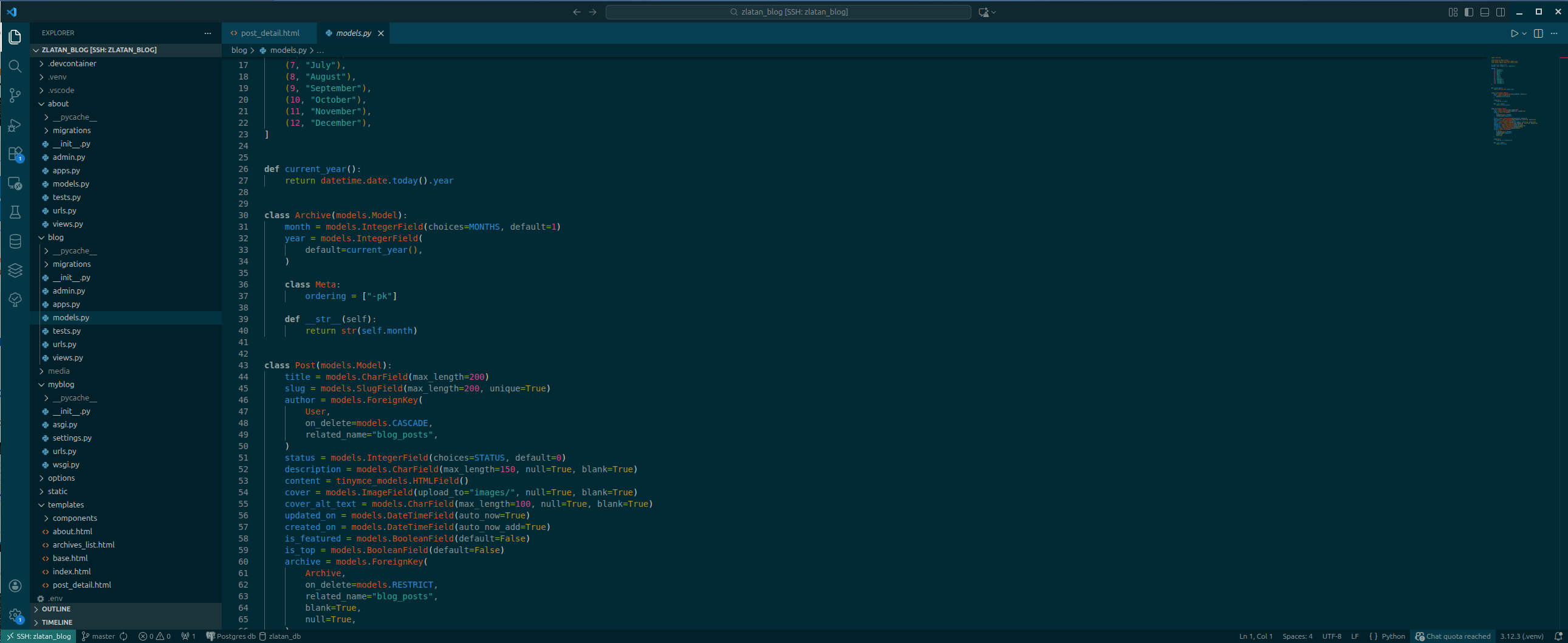
A Personal Background
Because my workplace changes on a daily basis, I’ve often faced challenges with having all my development work running locally on my desktop machine. Many times, I would be halfway through a project where the code wasn’t ready to be pushed yet.
At the same time, the computer I usually end up working on doesn’t always have enough resources for proper development. On top of that, if I’m not supposed to stay on a specific machine, I don’t want my code stored locally on it.
Since I already run my own development server, I started thinking about a better solution. The idea was simple: if I could connect to my network and log into my dev server, I could continue coding exactly where I left off — regardless of which machine I was using.
That’s where VS Code Server came in.
With this setup, my entire development environment lives on my own server. I can log in from anywhere, continue my work instantly, and avoid both performance limitations and security concerns. The flexibility this gives me is huge — and the setup turned out to be surprisingly simple.
Why VS Code Server?
VS Code Server allows you to run your development environment directly on a remote server while using the familiar VS Code desktop interface locally.
This approach is especially useful when:
-
Your local machine has limited resources
-
You work on multiple machines or locations
-
You use Docker-based development environments
-
You don’t want unfinished code stored locally
-
You want a consistent and persistent dev setup
Server-Side Setup with Docker
We’ll set up a Docker container to host VS Code Server. This includes Python, Git, SSH, and a development user. Persistent volumes ensure your settings and SSH keys survive container restarts.
Create docker file on your dev server:
Dockerfile
# Base image
FROM ubuntu:24.04

# Install Python, pip, SSH, Git, and build tools
RUN apt-get update && \
    apt-get upgrade -y && \
    apt-get install -y \
    python3 python3-pip python3-venv \
    openssh-server sudo git curl \
    libpq-dev python3-dev build-essential \
    && apt-get clean

# Create SSH runtime directory
RUN mkdir /var/run/sshd

# Create a non-root user for development
RUN useradd -ms /bin/bash devuser \
    && echo 'devuser:password' | chpasswd \ <-- change "password" to your devuser password
    && echo "devuser ALL=(ALL) NOPASSWD:ALL" >> /etc/sudoers

# Set the working directory inside the container
WORKDIR /home/devuser/project

# Generate SSH host keys if missing
RUN if [ ! -f /etc/ssh/ssh_host_rsa_key ]; then ssh-keygen -A; fi

# Enable password authentication for SSH
RUN sed -i 's/^#PasswordAuthentication.*/PasswordAuthentication yes/' /etc/ssh/sshd_config

# Switch to the non-root user for user-specific setup
USER devuser

# Configure Git globally for this user (replace with your info)
RUN git config --global user.name "Your Name" \
    && git config --global user.email "your.email@example.com"

# Switch back to root to start SSH server
USER root

# Expose SSH port (container -> host)
EXPOSE 22

# Start SSH server in foreground
CMD ["/usr/sbin/sshd", "-D"]
Explanation:
This Dockerfile creates a development-ready Ubuntu container with Python, Git, and SSH. It adds a non-root user, sets up SSH, and configures Git. Exposing SSH allows connecting VS Code remotely.
Next create docker-compose.yml file on your dev server folder where you created dockerfile.
docker-compose.yml
version: "3.9"

services:
  development:
    build: .
    container_name: dev-server
    volumes:
      # Mount your local project directory into the container
      - /path/to/your/projects:/home/devuser/project
      # Persist VS Code Server configuration across container restarts
      - vscode-config:/home/devuser/.vscode-server
      # Persist SSH keys for security
      - dev-ssh-keys:/etc/ssh
    ports:
      # Map container SSH port to host for remote access
      - "2222:22"
    networks:
      # Connect to a shared network for inter-container communication
      - shared-network
    restart: unless-stopped  # Keep container running unless manually stopped

# Define volumes to persist important data
volumes:
  vscode-config:
    external: true  # Use an existing Docker volume
  dev-ssh-keys:
    external: true  # Use an existing Docker volume

# Define network (external means pre-created Docker network)
networks:
  shared-network:
    external: true
Explanation:
This Compose file builds the Dockerfile and sets up persistent volumes for project data, VS Code Server configs, and SSH keys. It also maps the SSH port for remote access and connects the container to a shared Docker network.
Tips for readers:
-
Replace
/path/to/your/projectswith your host machine’s project path. -
Replace
"Your Name"and"your.email@example.com"with your Git credentials. -
Ensure the
vscode-configanddev-ssh-keysDocker volumes exist before running Compose. -
Use the mapped SSH port (
2222) to connect from VS Code Remote SSH.
Local Machine Setup (VS Code Desktop)
-
Install Remote – SSH extension from Microsoft:
https://marketplace.visualstudio.com/items?itemName=ms-vscode-remote.remote-ssh -
Open Command Palette (CTRL + SHIFT + P) →
Remote-SSH: Add New SSH Host. -
Enter a name for your server and select the SSH config path (e.g.,
/home/youruser/.ssh/config). -
Add a generic SSH configuration:
Host dev-server
  HostName x.x.x.x <- your server ip address
  Port 2222
  User devuser
  ForwardAgent yes
-
Connect via
Remote-SSH: Connect to Hostin VS Code. VS Code will automatically start VS Code Server on the remote container. - When prompted for a password, just enter your devuser password.
Final Thoughts
With this setup:
-
Your development environment lives on a server.
-
You can code from any machine using VS Code Remote SSH.
-
Persistent volumes ensure your settings and SSH keys are safe.
-
Docker keeps your environment isolated and reproducible.
VS Code Server with Docker is a flexible, robust, and easy-to-set-up solution for remote development — ideal if you switch machines often or want a powerful server environment without sacrificing local convenience.